Introduction: Information Systems You Need for University Life
You will use a variety of information systems in many aspects of university life, including your studies and research. This page provides an overview of the basic information systems provided across the University of Tokyo (UTokyo).
Please note that UTokyo offers classes in a wide range of formats, including face-to-face and online. For more information about class formats, please see “Other Information About Classes” later on this page.
What You Need for Student Life at UTokyo
Use of Various Information Systems
You will use a variety of information systems during your student life at UTokyo. You should set up your accounts and familiarize yourself with the procedures for using these systems — for example, attending classes and submitting assignments — in advance. The detailed procedures are explained in the subsequent sections, but here is a list of the main systems.
- UTokyo Account: This is the account used for UTokyo's information systems. The UTokyo Account is represented as a 10-digit number (**Common ID**) followed by the domain indicating the University of Tokyo, such as
0123456789@utac.u-tokyo.ac.jp. - UTAS: This system allows you to browse the syllabus for each class, register courses, and check your grades (academic affairs system).
- UTOL (UTokyo LMS): This system is used to download class material and submit assignments (learning management system).
- UTokyo Wi-Fi: This is a campus-wide Wi-Fi service provided at the University of Tokyo. It provides access to databases and e-journals that are available to University members only. You need to complete some setup steps before you can use this service.
- Zoom: This is a web conferencing system commonly used for online classes.
- ECCS Cloud Email (Google Workspace): This allows you to use Google services such as Gmail with your UTokyo account. You can also use your UTokyo email address. Since some pages can only be accessed with a UTokyo account, please make sure you can use your UTokyo account even if you already have a personal Google account.
- UTokyo Microsoft License: This is a Microsoft license offered to UTokyo Account holders. This license will enable you to download Microsoft Office applications, such as Word and Excel, and use online Microsoft tools for free with your UTokyo Account. Similar to Google Workspace, some pages can only be accessed with a UTokyo account, so you will need to set up your UTokyo account even if you already have a personal Microsoft account.
Network Environment and Electronic Devices
In many situations, you will need an Internet connection and devices such as a computer to take classes and work on assignments. Here is an explanation of what you should prepare.
- Internet connection: There should be no problem as long as you can stream videos without interruption. However, if you take long online classes, please pay attention to your data usage. In particular, if you are using a smartphone connected to a mobile network (e.g., 5G/4G LTE), please check your contract with your carrier to make sure you do not run out of data.
- The university provides Wi-Fi on campus, so there is no need to worry when you are on campus.
- Computer: You will often need a computer for writing reports, as well as for doing tasks and exercises during classes.
- A portable laptop is recommended so that you can use it on campus.
- For specifications, please refer to “UTokyo’s BYOD Policy”.
- We recommend a computer with a built-in microphone and camera. However, if your current computer does not have them, you can purchase external ones when needed.
- You can also refer to the University Co-op’s special page for new students, “受験生・新入生応援サイト 東大モデルPC (UTokyo Model PC for Examinees and New Students)” (in Japanese).
- If you do not have a computer that meets the specifications, please consult with your faculty or graduate school (for example, students enrolling in the Junior Division of the College of Arts and Sciences should contact the Student Support Team of the Educational Affairs Section).
- Headset or earphones: When taking online classes in a free classroom on campus, you will need a headset or earphones to listen to the class without disturbing other students in the same room. If you are purchasing new ones, a headset with a microphone is recommended.
When You Need Help
If you have any problems, difficulties, or concerns regarding UTokyo’s information systems, please consult the Technical Support Desk. We accept inquiries via chat, online calls, email form, and in person. Our student staff (“utelecon Support Staff”) and other faculty and staff members will assist you in resolving your issues.
For example, the following questions and consultations are welcome:
- “I followed the preparation procedures described on this page, but they did not work.”
- “I experienced a last-minute problem when trying to participate in an online class.”
- “I am unable to download class materials.”
- “I cannot connect to Wi-Fi on campus.”
Basic Procedures to Use the Information Systems
This section explains the essential tasks you should complete first, such as activating your account. Please make sure to complete these tasks well before classes start. If you have any problems during the procedures, please consult the Technical Support Desk.
[Required] Changing the Initial Password for Your UTokyo Account
- Obtain the “Notification regarding password for the UTokyo Account”, which contains your initial password, from your faculty/graduate school. It should be distributed well before classes start, but if you are unsure, please contact your faculty/graduate school (*For first-year undergraduate students enrolling in April 2026, it will be distributed via the web registration system starting March 23, 2026).
-
Sign in to “View Your UTokyo Account User Information” using the UTokyo Account and initial password written on the “Notification regarding password for the UTokyo Account”.
- You will be prompted to update your password. Enter the initial password from the notification in the “Current password” field, and enter your new password in both the “New password” and “Confirm password” fields.
- Your password must include at least 3 of the following 4 character types: uppercase letters, lowercase letters, numbers, and symbols, and must be between 12 and 64 characters long.
- After successfully signing in, click the “display information” button. Your Multi-Factor Authentication status (“not using it”) and Information Security Education status (“have not taken”) will be displayed. Please proceed to enable Multi-Factor Authentication and attend the Information Security Education.
Troubleshooting guide
- If you see a “You don’t have access to this” error or 「これに対するアクセス権がありません」 error (Error Code 53003) even though you have changed the initial password: After changing your password, it may take some time (up to 30 minutes) before you can actually use the system. Please wait a while and try again.
- If you cannot sign in to View Your UTokyo Account User Information properly: It has been confirmed that some versions of Safari on macOS (specifically version 26.3.1) do not work properly. If you cannot sign in using Safari, please try signing in with a different browser such as Google Chrome or Mozilla Firefox, or on a different device such as a smartphone.
If the issue is still not resolved, please consult the Technical Support Desk.
[Required] Setting up “Multi-Factor Authentication for your UTokyo Account”
The University of Tokyo has introduced multi-factor authentication to UTokyo Account to improve information system security.
Multi-factor authentication (MFA) is a security process in which users prove their identity using at least two pieces of evidence. In addition to passwords, users are asked to verify their identity via SMS, authentication applications, or other methods when signing into their accounts. MFA improves security by reducing the possibility of someone being able to sign in to your account even if your password is known to someone else for some reason.
On the UTokyo Account, MFA is enabled by users setting up their own initial setup. It is crucial to ensure the security of your UTokyo Account, not only to protect your personal information but also to protect the information assets held by the university. Therefore, MFA must be enabled. Some information systems are disabled until you have enabled MFA.
Please follow the setup procedures in the “Initial Setup Procedures for Multi-Factor Authentication for UTokyo Accounts”.
[Required] Attending the Information Security Education
UTokyo is conducting various initiatives for the improvement of information security, all of which are detailed on “Information Security at UTokyo” page. A prime example of these initiatives is the implementation of the annual Information Security Education for all UTokyo Account holders. Those who are newly enrolled should first attend this Information Security Education.
For details about the procedure of the course, kindly refer to the Information Security Education page. Please note that some systems will be unavailable until course completion.
Troubleshooting guide
- If you see an error message stating “You don’t have access to this” or 「これに対するアクセス権がありません」 (Error Code 53003) even after changing your initial password: It may take some time (up to 30 minutes) after changing your password before you can actually use the systems. Please wait a moment and try again.
If the issue is still not resolved, please consult the Technical Support Desk.
[Recommended] Pre-linking the UTokyo Account Identity Verification Service
By linking your Individual Number Card (My Number Card) to your UTokyo Account in advance, you can use it for identity verification when you are unable to sign in to your UTokyo Account. For details, please see the UTokyo Account Identity Verification Service page. (Note that pre-linking the UTokyo Account Identity Verification Service requires a physical Individual Number Card (My Number Card)1, its PIN, and a smartphone capable of reading the card. If you do not have these at hand, you may skip this step for now.)
-
As of September 2025, the so-called smartphone-based My Number Card (Android smartphone digital certificates and iPhone My Number Cards) cannot be used. ↩
Procedures for Major Information Systems
This section covers the more detailed procedures for each information system, such as logging in and accessing UTokyo member-only pages. Please try to complete these procedures before classes start so that you are fully prepared. If you have any problems during the procedures, please consult the Technical Support Desk.
UTAS
This system allows you to browse the syllabus for each class, register courses, and check your grades (academic affairs system).
- Exercise: Try logging in
- Access UTAS and click “Login”.
- Unless you have already signed in, the UTokyo Account sign-in page will be displayed. Please sign in.
Troubleshooting guide
- Error message “[Error] あなたは現在このシステムを利用することができません (You are currently unable to use this system)“:
- If your affiliation has changed (e.g., from undergraduate to graduate school), you will temporarily not be able to access UTAS. Please try logging in again later.
- If the above case does not apply, please consult your faculty or department.
If the issue is still not resolved, please consult the Technical Support Desk.
- Check: Make sure your email address is registered
- Click “Student Info” and then “Register Address Update, etc.” in the menu at the top.
- Ensure that you have registered a valid email address in the “E-MAIL 1” field.
- If there are no email addresses registered, or if the registered email address is incorrect, please change it to an existing email address that you own.
If this procedure does not work, please consult the Technical Support Desk.
UTOL (UTokyo LMS)
This system is used to download class material and submit assignments (learning management system).
- Exercise: Try logging in
-
Access UTOL and press “Login”.
-
Unless you have already signed in, the UTokyo Account sign-in page will be displayed. Please sign in.
If this procedure does not work, please consult the Technical Support Desk.
-
- Optional task: Link notifications with email / LINE / Slack You can receive notifications via email, LINE, or UTokyo Slack when there are updates to courses you are enrolled in or are in charge of. See “Setting notifications on UTOL” page (in preparation) for setup instructions.
UTokyo Wi-Fi
This is a campus-wide Wi-Fi service provided at the University of Tokyo. It provides access to databases and e-journals that are available to University members only. You need to complete some setup steps before you can use this service.
- Task: Apply for an account
-
Access the “UTokyo Wi-Fi Account Menu”.
- Unless you have already signed in to your UTokyo Account, the sign-in page will be displayed. Please sign in.
- Click on the “New Application” Button.
- At this point, the application is not yet done. Please proceed to the next step to complete the application.
- On the screen that appears, confirm that the email address in the “Notification E-mail Address” field is correct.
-
The user ID and password for your UTokyo Wi-Fi account will be sent to both your ECCS Cloud Email address and this “Notification E-mail Address”.
If you want to change your notification email address
In order to change the email address to which the notification email is sent, log in to UTAS and set “E-MAIL 1” in the “Student Information” menu (note that the “E-MAIL 2” address cannot be used as the UTokyo Wi-Fi email address).
Please note that it will take some time for the change to take effect, so please apply for an account after a day you registered your email.
-
- Click on the “Application” button, confirm the information displayed on the screen immediately afterwards, and write down your user ID and password.
- If a popup saying “Confirm the registration data. Would this be OK ?” appears, click “OK”.
- After clicking the “Application” button, wait a few moments, and the user ID and password for your UTokyo Wi-Fi account will appear on the screen in addition to the instructions for use. Please note that if you close the screen, the ID and password will not be displayed again. The same information will also be sent to you by email.
Troubleshooting guide
-
When the error message “You don’t have access to this” (Error Code: 53003) appears:
It is possible that the setup or activation of the multi-factor authentication (MFA) for your UTokyo Account, which is required to use the UTokyo Wi-Fi, has not yet been completed. Please make sure to follow the initial setup procedure on the page, “Initial Setup Procedures for Multi-Factor Authentication for UTokyo Accounts” until the last step, “Step 4: Apply for MFA Use” to enable multi-factor authentication for your UTokyo Account. It will take about 30 minutes for the MFA settings to be reflected in the system after these procedures, so please wait for a while.
If the issue is still not resolved, please consult the Technical Support Desk.
-
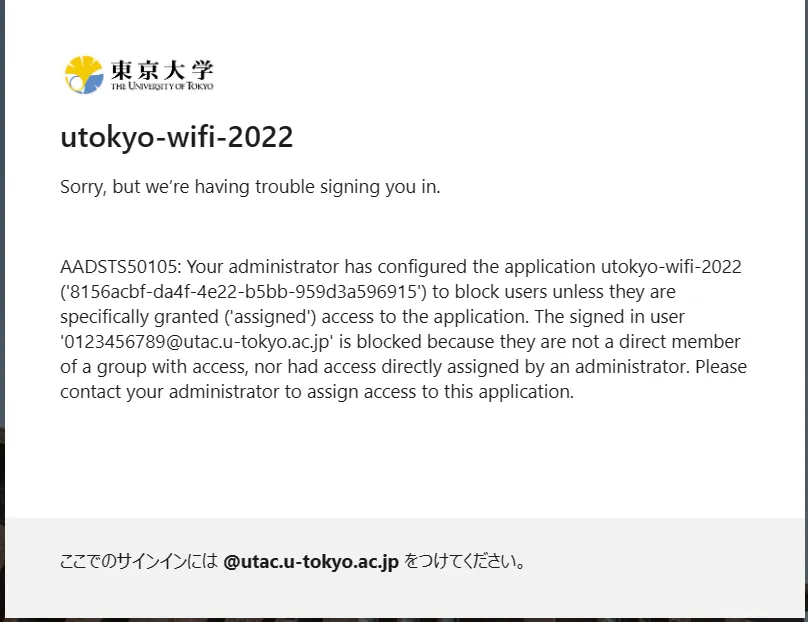
When the error message “申し訳ありませんが、サインイン中に問題が発生しました” or “Sorry, but we’re having trouble signing you in.” appears:
If you encounter an error message like the one shown in the image below (Error Code: AADSTS50105) and are unable to sign in to the UTokyo Wi-Fi account menu, it’s possible that you have not completed the required information security education to use UTokyo Wi-Fi. Please check the page for the Information Security Education, and complete and pass the confirmation test. Once you pass the test, the results will be immediately reflected in the system.
If the issue is still not resolved, please consult the Technical Support Desk.
-
If you do not receive a notification email:
- Please check your spam folder.
- Check your email address. The email will be sent to both your ECCS Cloud Email and the email address indicated in the “Notification e-mail address” field on the application screen.
If the issue is still not resolved, please consult the Technical Support Desk.
-
- Task: Try connecting
This process can only be done in the place where UTokyo Wi-Fi (Wi-Fi with SSID
0000UTokyo) is visible on the Wi-Fi setting menu of your own devices.- Select
0000UTokyoon the Wi-Fi connection settings screen of the device you want to connect. - Enter the user ID and password of your UTokyo Wi-Fi account (not of your UTokyo Account). You can find your user ID and password in the notification email you received in the step above. If you have just finished your application, you can also find them on the application completion screen of the account menu.
- Once you establish a connection, you can use it just like any normal Wi-Fi.
When connecting, you may be asked to verify your certificate or to enter the information described in the "Connect Configuration" section on UTokyo Wi-Fi page.
Please refer to ECCS Tutor’s page as well if you are unsure. There are detailed connection instructions for each device. You may also refer to the “User’s Guide” on the page of the Wi-Fi system called “eduroam”, which has a similar connection method (replace
eduroamwith UTokyo Wi-Fi SSID when you read the page).Troubleshooting guide
- If the signal is weak, the connection may be interrupted. Try different locations or times of the day.
- When you enter your user ID, please include the alphabetical part as well.
- Make sure you have entered the symbols in the password correctly. Try copying and pasting from the notification email.
- If you are copying and pasting from a notification email, please make sure that there are no extra spaces before or after the password.
- If you have multiple applications for an account during the process, only one of them will be valid; only the account listed in the UTokyo Wi-Fi account menu will be valid, so please check.
- The trouble may be caused by devices which are not kept up to date. Old MacOS, Windows 8.1 or earlier, and other devices (smartphones, etc.) that have not been updated should be updated to the latest version before connecting.
If the issue is still not resolved, please consult the Technical Support Desk.
- Select
Zoom
This is a web conferencing system commonly used for online classes.
- Check: Try signing in on a web browser
- Go to the UTokyo Zoom page (please note that this is a Zoom sign-in page for UTokyo members only and is not the regular Zoom sign-in page).
- A page labeled “UTokyo Zoom” will appear. Click the “Config” button on this page.
- Unless you have already signed in, the UTokyo Account sign-in page will be displayed. Please sign in.
- If you see “Licensed” with your Common ID after clicking the icon in the top right corner of the Zoom settings page (a human silhouette or a profile picture that you have set up), you have successfully signed into Zoom with your UTokyo Account.
Troubleshooting guide
- If you cannot see the page that says “UTokyo Zoom” after accessing the link above: This happens when you are already signed into Zoom with your existing account. Click the icon in the upper right corner of the Zoom settings page (your icon or the human silhouette if you do not have a profile picture) to “Sign Out”. Thereafter, try to access the site again.
If the issue is still not resolved, please consult the Technical Support Desk.
- Task: Install the Zoom app on your computer
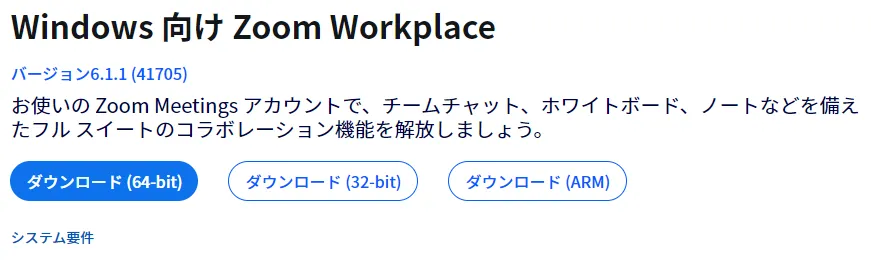
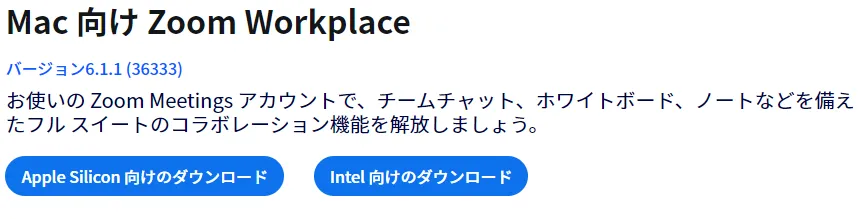
- Access the Zoom “Download Center”.
- Click the “Download” button for “Zoom Workplace”. The Zoom Workplace installer will be downloaded. (“Zoom Workplace” is the name of the application used for Zoom.)
- The remaining steps may vary. The installation may proceed automatically, or you may need to click a confirmation button or manually open the downloaded file.
- (macOS only) If necessary, to grant the permission required for screen sharing, go to “System Settings” > “Privacy & Security” > “Screen & System Audio Recording” and turn on the toggle for “zoom.us” (or “zoom” or “zoom.us.app”).
If this procedure does not work, please consult the Technical Support Desk.
- Task: Sign in to the Zoom app (useful if you host meetings or need to join meeting rooms restricted to UTokyo accounts, which are used in some online classes)
- Open the Zoom app and click the “Sign In” button.
- On the sign-in screen, find the words “SSO”, “Continue with SSO” or “Sign In with SSO” and click on it.
- In the “Company domain” field, enter
u-tokyo-ac-jp(note that theacshould be preceded and followed by a hyphen, not a period). - Unless you have already signed in, the UTokyo Account sign-in page will be displayed in the browser. Please sign in.
- For computer users, see the “Profile” tab on the settings screen (click on the gear icon in the upper right corner of the “Home” screen, for example). For smartphone users, click “More” on the lower right. You have properly signed in if you see your name (or Common ID if you have not set one up) and the message “LICENSED” on the screen.
Troubleshooting guide
-
If after entering your “company domain” you receive a message such as “This site cannot be reached”: If you receive a message such as “This site cannot be reached,” “Sorry, we cannot find your server,” or “The site you are trying to access cannot be found” in the browser, you did not enter the “company domain” correctly. Please check again that you have entered
u-tokyo-ac-jp. In particular, note that theacshould be preceded and followed by a hyphen (-), not a period.
If the issue is still not resolved, please consult the Technical Support Desk.
- Optional task: Install the Zoom app on your smartphone (not required, but useful as a backup in case your computer has issues)
- For Android users, you can install the app from Google Play. For iPhone users, you can install it from the App Store.
If this procedure does not work, please consult the Technical Support Desk.
- Check: Try joining a meeting room dedicated to UTokyo accounts using the app (try this on the device you plan to use for online classes; it is also a good idea to try it on your smartphone as a backup)
- In the meeting room, your microphone audio or camera image may be sent to other people (in the test room used here, your audio or video will not be sent to others just by joining the room. However, it could be sent while testing different functions). If you are concerned, please perform this test in a situation that is safe for sending audio and video.
- Access the test meeting room URL via the UTOL test cource.
- Click “Join from Zoom Workplace app” or “Join from App” in the center of the screen (or “Join from browser” if the app is not installed on your device).
- If a popup such as “Open zoom.us?” appears before these screens, you may also be able to open it from the “Open zoom.us” button in the popup.
- After the Zoom app opens, if a preview screen appears, click “Join”.
- If a message saying “To hear other participants, please connect to audio” is displayed, click the button labeled “Join with Computer Audio” or “WiFi or Cellular Data”. Note that the name of this button may vary depending on your device.
- If you see a black screen with options like “Start Video” and “Participants” at the bottom, you have successfully entered the meeting room.
ECCS Cloud Email (Google Workspace)
This allows you to use Google services such as Gmail with your UTokyo account. You can also use your UTokyo email address. Since some pages can only be accessed with a UTokyo account, please make sure you can use your UTokyo account even if you already have a personal Google account.
You can set the part before the @ in your email address to whatever you prefer. If you do not set it yourself, your email address will be your 10-digit Common ID followed by @g.ecc.u-tokyo.ac.jp (the Common ID is the first 10 digits of your UTokyo Account).
- Task: Set your preferred email address
- Access the UTokyo Account User Menu.
- Unless you are already signed in to your UTokyo Account, the UTokyo Account sign-in page will appear. Sign in with your UTokyo Account.
- Click “ECCS Cloud Email (mail address)” on the left to open the email address setting page. Enter your preferred username in the “Email Address” field and click “SAVE”.
If this procedure does not work, please consult the Technical Support Desk.
- Check: Try logging in
- If you set your email address of your own, please wait about 40 minutes for your newly set email address to be reflected in the system.
- Go to the Google login page.
- If you have set an email address of your own, please enter that email address, otherwise enter UTokyo Account (10-digit Common ID +
@g.ecc.u-tokyo.ac.jp). - Unless you have already signed in to UTokyo Account, the UTokyo Account sign-in page will be displayed. Please sign in. For username, please enter UTokyo Account (10-digit Common ID +
@utac.u-tokyo.ac.jp).
If this procedure does not work, please consult the Technical Support Desk.
- Check: Make sure you can access UTokyo member-only pages
- Access the ECCS Cloud Email member-only test page (Google Sheets).
- If you are not logged in, you will be prompted to log in. Log in as described in the steps above.
- If you can view the content of the page (spreadsheet), you have successfully signed into your ECCS Cloud Email. If you cannot view the content and see a message like “You need permission”, do not request access. Instead, follow the help section below.
Troubleshooting guide
- (On computer or smartphone) If you see “You need permission” and there is a display like “Logged in as: example@gmail.com” at the bottom: This happens when you are signed in with a Google account other than your ECCS Cloud Email. (e.g., @gmail.com, @edu.k.u-tokyo.ac.jp). Click the email address under “You are signed in as”. You will be taken to the “Choose an account”, where you can switch your account. Select your ECCS Cloud Email account (xxxx@g.ecc.u-tokyo.ac.jp). If your ECCS Cloud Email account does not show up, click “Use another account” and sign in with your ECCS Cloud Email.
- (On smartphone) If you see a “You need permission” or “Request access” screen: This happens when you are signed in with a Google account other than your ECCS Cloud Email. Follow the steps in “Log in on your smartphone” below, and then try to access the test document again.
If the issue is still not resolved, please consult the Technical Support Desk.
- Optional task: Log in on your smartphone (for users of Gmail or other Google apps)
- Open a Google app, such as Gmail, and click your profile picture in the upper-right corner (either a picture you set or the default avatar with your initials).
- Tap “Add another account” to add your Google account.
- Enter your email address from the above procedure.
- Unless you have already signed in to UTokyo Account, the UTokyo Account sign-in page will be displayed. Please sign in. For username, please enter UTokyo Account (10-digit Common ID +
@utac.u-tokyo.ac.jp).
If this procedure does not work, please consult the Technical Support Desk.
- Exercise: Try using email (you can use your email address
xxxx@g.ecc.u-tokyo.ac.jpin Gmail)- Access Gmail.
- You will be prompted to log in if you have not already done so. Enter the email address you created if you set one yourself; otherwise, enter UTokyo Account (10-digit Common ID +
@utac.u-tokyo.ac.jp). - You can use Gmail’s email service with your ECCS Cloud Email, just like a regular Gmail account. Try sending an email to another email address you have or check whether you can receive an email sent from your other email address.
If this procedure does not work, please consult the Technical Support Desk.
UTokyo Microsoft License
This is a Microsoft license offered to UTokyo Account holders. This license will enable you to download Microsoft Office applications, such as Word and Excel, and use online Microsoft tools for free with your UTokyo Account. Similar to Google Workspace, some pages can only be accessed with a UTokyo account, so you will need to set up your UTokyo account even if you already have a personal Microsoft account.
- Check: Try signing in
- Go to the Microsoft sign-in page.
- On the sign-in screen that appears, enter UTokyo Account (10-digit Common ID +
@utac.u-tokyo.ac.jp). (This screen will not appear if you are already signed in.) - Unless you have already signed in, the UTokyo Account sign-in page will be displayed. Please sign in.
- Double check whether the UTokyo logo appears in the upper-left corner of the “My Account” screen.
Troubleshooting guide
- You cannot access the sign-in screen from the above link: This occurs when you are already signed in to Microsoft with another account. Click your account picture in the upper-right corner of the Office 365 home page (either a picture you set or the default picture that shows your initials or a human silhouette). Click “Sign out” and access the sign-in page again.
- If the message “Verify your phone number” appears: This may occur when only the 10-digit Common ID was entered. Enter it followed by
@utac.u-tokyo.ac.jp, such as0123456789@utac.u-tokyo.ac.jp.
If the issue is still not resolved, please consult the Technical Support Desk.
- Check: Make sure you can access UTokyo member-only pages
- Go to the UTokyo member-only test form (Microsoft Forms).
- A sign-in screen will appear if you are not already signed in. Enter your UTokyo Account (e.g.,
0123456789@utac.u-tokyo.ac.jp) and sign in as explained above. - You are properly signed in if you can see the form contents (you do not have to fill or respond to the form).
Troubleshooting guide
- Error message “You don’t have permission to view or respond to this form”: This error occurs when you are already signed in to Microsoft with another account. Click your account picture in the upper-right corner of the Office 365 home page (either a picture you set, or the default picture that shows your initials or a human silhouette). Click “Sign out” and access the sign-in page again.
If the issue is still not resolved, please consult the Technical Support Desk.
- Optional task: Use Word or Excel on your computer (if you already have them installed, you can continue using them. If you want to use UTokyo Microsoft License with your existing Microsoft Office applications, please see “Installing Office Apps with UTokyo Microsoft License > Sign in”.)
-
Access Microsoft 365 > Apps and sign in with your UTokyo Account (your 10-digit Common ID followed by
@utac.u-tokyo.ac.jp). For detailed instructions and information on switching between Microsoft accounts, see Signing in to Microsoft Systems with UTokyo Account.Help: If you see a “You don’t have access to this” error
The Multi-Factor Authentication for your UTokyo Account required to use Microsoft Office applications may not have been completed or may not yet be reflected in the system. Please make sure to complete the “Initial Setup Procedures for UTokyo Account Multi-Factor Authentication” all the way through “Step 4: Apply to use Multi-Factor Authentication” to enable Multi-Factor Authentication for your UTokyo Account. After that, please wait approximately 30 minutes for the Multi-Factor Authentication settings to be reflected in the system.If the problem persists, please consult the Technical Support Desk. -
Click “Install apps” in the upper right corner of the screen, and then click “Microsoft 365 Apps” from the menu that appears.
Help: If “Microsoft 365 Apps” is not displayed
You are not an eligible user. If you need to use Office, one alternative is Microsoft Office Web Apps. If you believe you are an eligible user but “Microsoft 365 Apps” is not displayed, please check with the relevant office of your faculty/graduate school (academic affairs office for students, human resources office for faculty and staff) to confirm your enrollment or personnel registration status.
-
If you see “Install Office”, click “Install Office”. If you see “Install and more”, click “Install Microsoft 365 apps”.
Help: If “Install Office” or similar is not displayed
Your environment may not support the installation of Microsoft Office applications.
-
The remaining steps may vary. The installation may proceed automatically, or you may need to click a confirmation button or manually open the downloaded file.
-
When a message indicating that the installation is complete is displayed, you are done. Next,
-
Launch one of the installed Microsoft Office applications, such as Word, Excel, or PowerPoint. The following instructions use Word as an example.
-
Check the screen that appears and follow the instructions below.
- If a dialog saying “Sign in to get the most out of Office” or similar is displayed: You are not signed in to any Microsoft account in the Office app. Click “Sign in or create account”.
- If the above screen does not appear and the normal editing screen is displayed: You are signed in to the Office app with some Microsoft account. Click the person icon in the upper right corner, then check which account you are currently signed in with. If you are signed in with an account other than your UTokyo Account, select “Add account”.
-
Installation will show a similar sign-in screen. Sign in.
-
On Windows, a dialog saying “Stay signed in to all your apps” may appear. Depending on your selections here, error messages may occur while using the Office app. To prevent this, please respond as follows:
- Uncheck “Allow my organization to manage my device”.
- If you want to automatically sign in with your UTokyo Account to other Microsoft systems (such as OneDrive) in addition to Office apps, select “Yes”. If you want to sign in with your UTokyo Account to Office apps only, select “No, sign in to this app only”.
Help: If you made a different selection from the above
Error messages (error code: 80180018, etc.) may appear while using the Office app. This error occurs because of a mismatch between the administrative settings of UTokyo Account and the behavior of the Office app, and it does not adversely affect your device, other software, or saved data. If the Office app is working without issues, you can safely ignore this error. However, if you find the error messages annoying or if the error prevents you from using the Office app altogether, you can follow the steps below to correct the settings and prevent such errors from occurring.
- Close all Office apps such as Word and Excel.
- Open the Windows “Settings” app (gear icon).
- In the settings menu, select “Accounts” > “Access work or school”.
- If your UTokyo Account is displayed on the “Access work or school” screen, select “Disconnect”.
- Try signing in to the Office app again.
-
Click the person icon in the upper right corner and confirm that you are signed in with your UTokyo Account.
-
Other Information Systems
- Educational Campus-wide Computing System (ECCS)
- These are computers installed on campus. They may be used in some in-person classes and can also be used to take online classes on campus.
- Comprehensive Antivirus Software License (UTokyo Antivirus License)
- UTokyo provides a Comprehensive Antivirus Software License (UTokyo Antivirus License) for faculty, staff, and students. The “Guidelines for Information Ethics and Computer Use” requires you to take “appropriate antivirus measures” for your computers. Please use this license as part of your security measures.
- The version for academic year 2026 is currently in preparation.
- Until March 2026, applications will be for the academic year 2025 software. Even if you apply before March, you will need to apply again after April to use the academic year 2026 version.
- EZproxy
- This system allows you to access UTokyo-subscribed e-journals that are available to University members only from off campus. Please use it as needed.
- MATLAB
- MATLAB is a software program that can be used in a wide range of classroom and research settings, including programming, numerical computation, data processing, and creating graphs. As an effective data science learning tool, UTokyo recommends the use of MATLAB in teaching and research, and several classes using MATLAB are offered in the Junior Division of the College of Arts and Sciences. To use MATLAB, you need to create an account with a University of Tokyo license.
- Self-learning tools and workshops are provided for learning how to use MATLAB and for studying advanced topics in various fields using MATLAB. MATLAB may also be required in some lectures, so please use it as needed.
About Classes
Class Formats at the University of Tokyo
At the University of Tokyo, classes are offered in a wide range of formats, including face-to-face and online. Face-to-face classes are conventional classes held in classrooms, and online classes are classes in which students can participate without being in the classroom, using web conferencing systems and similar tools. Please check with the faculty/graduate school or the instructor in charge of the class to find out which format each class will be in.
Online Classes
There are various types of online classes, but the main type at the University of Tokyo is the “simultaneous, interactive” type. This is a form of real-time, two-way communication between instructors and students using applications called web conferencing systems, such as Zoom and Webex, which allow audio and video exchanges. The preparations necessary for using these systems are explained on this page.
Other forms include the “on-demand” type, where students watch recorded video content and ask questions or discuss via email or chat tools, and the “hybrid” type, which combines online classes with face-to-face classes in the classroom.
To participate in a “simultaneous, interactive” online class, you need to know the URL of the web conference for that class. This information is normally posted in the “Online course information” section of UTOL, introduced above. However, depending on the class, the instructor may share the URL through other means. Please see the “How to Obtain the Online Class URL” page for more information.
When taking online classes from within the campus, you can use the classrooms listed on the “Classrooms Available for Taking Online Classes” (in Japanese) page.
Other Information About Classes
- Information about classes, such as timetables and course registration procedures, may also be provided by your faculty/graduate school. Please make sure you know how this information is communicated and check it regularly (if you are unsure, please contact your faculty/graduate school).
- (For first-year undergraduate students) Please check the “Notices for New Students” page on the College of Arts and Sciences website, which is linked in the “Enrollment Procedures Guidelines” (from April onwards, please check the 前期課程 HP「教務課からのお知らせ」 (“Notices from the Educational Affairs Section”)).
More Information
Thank you for taking the time to read this guide. If you have had any difficulties with any of the steps, please consult the Technical Support Desk.
This concludes the preparation procedures for the information systems you need for university life. This site, “The Portal Site of Information Systems @ UTokyo”, nicknamed “utelecon”, provides a wealth of information on how to make the most of the information systems mentioned on this page. Whether you have questions about systems used in your classes, or you need to use web conferencing and other information systems for club activities or study groups, please visit this site.
Also, utelecon provides updates and announcements via the official X account. Please follow it to stay up to date with the latest information.